Showing posts with label Tablet. Show all posts

Friday, 20 May 2016

Dell XPS 18

                                             Dell XPS 18 review:

If three examples of the same thing marks a trend, then we're almost guaranteed to see more systems like the Dell XPS 18. Like the Sony Vaio Tap 20 and the Asus Transformer AIO, the XPS 18 is a hybrid of the all-in-one desktop and the large-format tablet.
In practical terms, that means this is an all-in-one PC with a built-in battery that detaches from its included stand. You can keep it docked, in which case it's virtually indistinguishable from other AIO systems, or pick the 18-inch display up and go from room to room, or farther if you're feeling bold.
Why would you want to do that? We've found existing tablets to be very useful for quick information gathering or showing off photos and media, but too small for really sharing efficiently with a group (say, a family).
Unlike a large all-in-one desktop screen-stand combo that needs to be lugged from room to room, the 18-inch touch-screen display on the XPS 18 is easy enough to pick up and carry around. It even has two flip-out feet for standing up on its own, although I wouldn't count on them as stable enough for permanent use.

The second major use for a system such as this is as a tabletop PC. That top-down view still smacks of retro-futurism, an idea most at home in '80s sci-fi movies or else reminiscent of cocktail table arcade cabinets. In anecdotal use, we had some fun with the XPS 18 lying flat on its back, facilitating some basic two-player touch-friendly games -- although the Microsoft app store doesn't make games of this ilk easy to find, and the screen's top coating had too much finger drag to really work for fast-packed air hockey/Pong-style games.
Behind the 18-inch, 1,920x1,080-pixel screen, you're dealing with an Intel Core i5-3337U processor, which is a laptop CPU, plus a 500GB hard drive/32GB solid-state drive (SSD) combination, and 8GB of RAM. A perfectly usable configuration, but not what one might expect for $1,350 from a standard all-in-one desktop. These all-in-one/tablet hybrids still command a price premium, especially considering that you don't get an optical drive or GPU beyond Intel's integrated HD 4000.
Less expensive configurations include $1,000 for a Core i3 version and $900 for a Pentium-class CPU version, the latter of which I can't imagine recommending under any circumstances. Both of these sub-$1,000 configurations omit the system's docking stand, which can also be used as a charging base, but all three include a basic wireless keyboard and mouse.
The Dell XPS 18, at least in its too-expensive higher-end configuration, is the best (and best-looking) of the current crop of big-screen tablet/all-in-one PCs, though keep in mind Lenovo and other PC makers have new versions on the way. Its practical applications are debatable, and will be more obvious to some (families and students, perhaps) than others, but it's certainly fun to play around with.


Design and features
The XPS 18 looks like a smaller all-in-one desktop at first glance. Sitting on a hefty industrial-looking stand is a featureless black screen, with only a Dell logo in the upper left corner and a Windows 8 flag logo below the screen. From the side, it's as thin as or thinner than most non-tablet all-in-one systems, and feels designed to fade nicely into the background. An 18-inch screen is on the small side for an all-in-one, but conversely it's large for a tablet, making this either bigger or smaller than you might expect, depending on whether you're viewing it primarily as a desktop or portable device.
As mentioned above, other examples of this hybrid genre so far have been the 20-inch Sony Vaio Tap 20 and the Asus Transformer AIO, which has an 18.4-inch display. Each of those systems has a near-fatal flaw, making the Dell XPS 18 the best of this new breed. In the case of the Vaio Tap 20, the slightly larger tablet display weighs nearly 12 pounds, while the 18-inch Dell tablet weighs closer to 5 pounds. As you can imagine, the Dell lends itself to casual household carry-around sessions much more easily.
The Asus Transformer model sits on a gigantic stand, with a full back plate behind the tablet, so it has a giant footprint even in tablet mode. The Transformer is an unwieldy combination of operating systems, switching over to Android and an Nvidia Tegra CPU when detached from its dock. Windows is only available via a virtualized interface, beamed from the base to the tablet. If you think that sounds overly complicated and less than ideal for household use, you'd be right.
That leaves the XPS 18 as the tablet/all-in-one that best represents both sides of its dual nature. Upcoming systems, such as Lenovo's 27-inch Horizon 27, will challenge it, but we'll have to wait and see if consumers prefer a large lap-size tablet or a giant tabletop-style one.
The screen of the XPS 18 has a small rubberized border around its outer edge -- a nod to the heavily hands-on way Dell expects people to interact with it. Two rubber-and-plastic feet fold out from the rear panel as a kickstand, holding the screen at about a 100-degree angle. It's reasonably stable, but I wouldn't use it full time. Unfortunately, anyone buying something other than the top-tier $1,350 configuration will have to shell out another $99 for the metal docking stand.
That stand is weighted for stability, and has a rotating cradle to hold the actual PC, allowing you to adjust the angle. The system's power cord can snake into the dock's hinge and connect, providing power via a connector built into the cradle. Much like the connector on Microsoft's Surface Pro, it's a line of raised copper dots that matches up with its counterpart on the bottom edge of the tablet. When it's connected, a lighted strip on the dock activates, letting you know a connection has been made, which is important, as a little nudging back and forth was often required to seat the tablet on the stand properly.
You can also connect the power cable directly to the tablet, and the power port sits on the left edge, alongside two USB 3.0 ports, a headphone jack, and a volume rocker. The XPS 18 also has a front-facing 720p Webcam, and support for 802.11n wireless, Bluetooth 4.0, and Intel's Wireless Display.
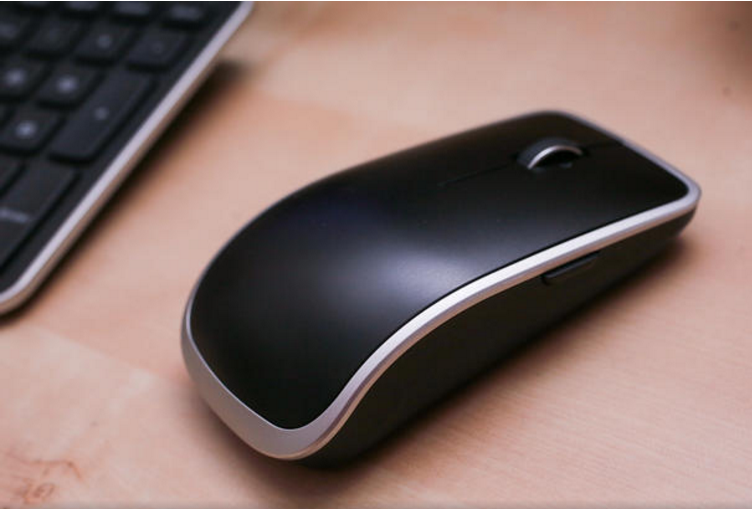
Included are a prepaired mouse and keyboard. These look like standard Dell pack-ins, and not particularly customized to match the industrial design of the XPS 18. The large plastic mouse, with its arched back and large scroll wheel, feels especially out of place (read: cheap) when placed next to a $1,350 computer. The compact keyboard fares better, with widely spaced, flat-topped keys and a full number pad. The individual keys, slightly rounded at each corner, were clacky under the fingers but offered no flex, even under heavy typing.
iPad Pro 9.7-inch

                                                   iPad Pro 9.7-inch review:

The best iPad ever has your laptop in its sights

THE GOOD : The new iPad Pro delivers a fast processor; a bright, antireflective display; support for Apple Pencil and Smart Keyboard accessories; better, louder speakers and top-notch cameras, in the same exact body as the iPad Air 2.
THE BAD : A higher price, plus expensive accessories. Less RAM and a slightly slower processor than the 12.9-inch iPad Pro. iOS still limits overall flexibility of this iPad.
THE BOTTOM LINE : It's still not a full-fledged laptop killer, but the new 9.7-inch iPad Pro is the best iPad ever made -- a near-perfect balance of tablet power and portability.
Take last year's largest-ever iPad, shrink it down to the more traditional 9.7-inch size, add an even better camera and screen, and you've got the new 2016 iPad Pro. It starts at $599, £499 or AU$899 for the 32GB Wi-Fi model -- and it's the iPad I'd buy if I were in the market for a newtablet right now.
But if I already had an iPad Air 2, I'd hold off unless I really needed the drawing features enabled by Apple's excellent Pencil stylus (sold separately for $99, £79 and AU$165).
I'm writing this on the 9.7-inch iPad Pro with its Smart Keyboard sitting on my lap. On a plane. The keyboard's comfy. It's not backlit, but I can guess the keys by touch pretty well. The display is beautifully crisp and vibrant. And it runs a magic mix of work tools and fun stuff. I can read easily. I can play games. I can watch movies. It's extremely convenient.
I've used the Air 2 and a Belkin keyboard case as my go-to for a while now. It's a compact, convenient combo. And I type on the iPad. Lately, a lot. I use it for taking quick notes, or as a security blanket when my laptop's somewhere else. It comes with me to work.

But the iPad still, despite Apple's insistence on it being the future of computing, isn't a laptop replacement. I can't bring it to a press conference and make it my one machine to cover the event. I can't run the camera-tethering software I need, or easily communicate in a window with my teammates via Google Chat (though I can with Slack), or write and edit and publish stories from my in-browser content tools. I can't even do my corporate expenses on my company's Java-based accounting system. Maybe I could come up with some way it could meet my needs, but it wouldn't really do it the way I'm used to. And that's the point, really. My tools don't always line up with the iPad's tools. The iPad, and its vision of the future of computing, remains stubbornly separate from the Mac, and less multipurpose than a Windows device.
All of those frustrations seem to to belie "Pro" moniker on this iPad. And yet, if I were to pick the iPad that came closest to perfection, it would be this one. It's a portable dream. The tiniest little productivity tool Apple makes. It's got performance, better sound and display, and -- what am I looking for that's really missing?
Nothing, except I want the iPad to be more like a laptop. Just a bit.

Hardware, perfected

Last year's iPad Pro, the 12.9-inch one, was crazy-big -- the biggest iPad to date. I felt like I was carrying a sheet of glass everywhere. But it had some good features, supporting the fantastic-but-expensive pressure-sensitive Pencil stylus, quad speakers and side-connected keyboard accessories. This iPad's got all of those, and even more, in the same-size body as the older Air 2.
Weirdly, this smaller iPad has a few key improvements over the massive 12.9-inch iPad Pro, and they're pretty significant:
Better cameras: Its cameras are entirely better: a 12-megapixel rear camera that can record 4K video (with real flash, no less) and a 5-megapixel front camera with Retina Flash give the 9.7 Pro the same cameras as the iPhone 6S. Does that matter? It does if you're using the iPad as a camera. You might mock the idea of taking pictures on an iPad, but having top-notch cameras on a tablet has no downside. (And for those of us who use the camera as an on-the-fly document scanner, it's definitely an upside.)
Better screen: The iPad Pro's display is fantastic, too. True, it's the same resolution as the older iPad Air 2, but it's gotten markedly better glare reduction, brightness boost and Apple's weird-but-strangely-good-for-reading TrueTone automatic color adjustment. Almost like an automatic and more subtle version of iOS 9.3's Night Shift, this iPad continually adjusts its color temperature to match your environment. It's not annoying, and it's so subtle that it's easy to forget it's working unless you toggle this feature off in settings. Seriously, the antiglare, brightness and color-temperature-adjusting improvements make this iPad far better as an outdoor -- or even indoor -- device.

Google Pixel C

                                                 Google Pixel C review:

An Android tablet worthy of replacing your iPad

THE GOOD The Google Pixel C has a slim, compact aluminum build that feels sturdy. Its optional Bluetooth keyboard is equally solid and doubles as the tablet's cover and it has a powerful, long-running battery. The tablet runs the latest version of Android and its performance is lightning fast. The screen is sharp, bright and colorful, and gaming graphics look stellar.
THE BAD It's a bit heavy when attached to the keyboard (which is sold separately). Big-name apps and games still tend to hit iOS before Android.
THE BOTTOM LINE The Google Pixel C is the best Android tablet money can buy.


Google's latest tablet is its greatest yet. In fact, the Pixel C hands down is the most powerful Android tablet I've ever used. The real question here isn't if the Pixel C is the best tablet, it's "who cares"?
The Pixel C starts at $500 and has a high-end design, spectacular screen, fast performance and long-lasting battery. (UK and Australian pricing has yet to be announced, but the US price converts to around £335 or AU$695.) But with interest in tablets decreasing more and more every year, Google's best effort at a high-end tablet may fall upon deaf ears.
As a standalone tablet, its aluminum design is both elegant and solid. When combined with its optional magnetic Bluetooth keyboard ($150), which is made of the same material, the tablet turns into a productivity-geared hybrid. Its duality -- and $500 starting price -- makes it ripe to compete against theMicrosoft Surface 3 and the iPad Air 2. The problem is, that's like comparing apples and oranges. The Surface is powerful enough to replace a laptop, whereas the iPad works best for leisure activities, like gaming and streaming video. The Pixel C exists somewhere between the two.

The Pixel C is hands down the best Android tablet today. It earns a place near the top of the charts and rivals the iPad Air 2 for the title of overall best tablet. If you're interested in a tablet for work, the strength of its performance will depend on your needs. But if I had to pick between the two, I'd go with the Google Pixel C due to its exceptionally designed keyboard, gorgeous screen and speedy performance.
 Where can I buy this and what's the price?
The Pixel C is available now at Google's Store starting at $500 with 32GB of onboard storage. There's also a 64GB version priced at $600, which converts to £400 or AU$835.
The optional keyboard is also available at Google and costs $149, which converts to about £100 or AU$205.

Specs versus the competition:

That's one good-looking tablet

Google has consistently released great Android tablets in partnership with the likes of Asus and HTC, but this is the first time the company has built its own model from the ground up. From the looks of it, Google should've been designing its own tablets all along.
The Pixel C has an anodized aluminum frame that looks as luxe as any Apple tablet. It's fashionably matte, smooth and solid. In order to allow space for a large battery, the Pixel C is thicker and heavier than the iPad Air 2, though the difference isn't dramatic to the naked eye. I found both similarly comfortable to hold for long periods of time.
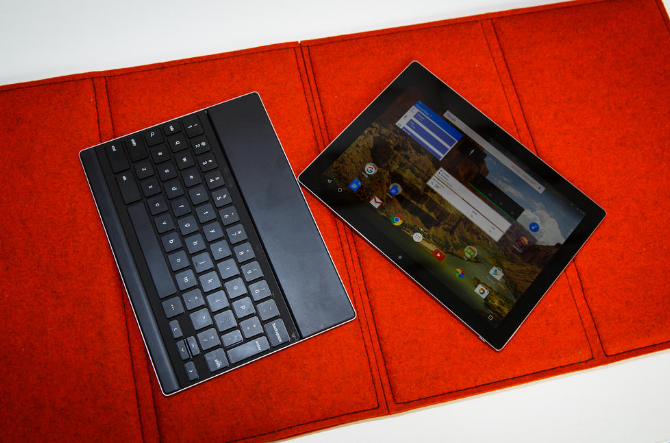
One of the best things about the Pixel C is its optional Bluetooth keyboard. It's magnetic and charges inductively. For such a skinny little thing, it's surprisingly comfortable. The main keys are almost full-sized, and the tab and enter keys are sized down. Typing on it doesn't feel as cramped as other Bluetooth keyboards -- it's small yet spacious, and compact enough to use even in the most confined spaces.
Once you magnetically attach the keyboard onto the tablet, it automatically connects over Bluetooth and hides the on-screen keyboard. This worked without a hitch most of the time. In a handful of instances, it took 10-20 seconds for it to work. It still automatically connected without me having to go into the Bluetooth settings, it just sometimes took a little longer than usual.
The keyboard doubles as a removable cover, which makes it look more like a laptop, or a tablet with armor. It's probably the most protective keyboard cover around -- built from the same aluminum as the tablet, which makes it both stylish and sturdy. The magnetic connection between the keyboard and tablet is freakishly strong. I never had to worry about them disconnecting, even if I shook it or held it upside down. Once attached, it's almost like they're superglued together.
Despite its excellent construction, I have a few gripes about the Pixel C's design. There's no trackpad, the keyboard makes it a bit heavy, separating the keyboard from the tablet can be awkward when it's being used as a cover and it's hard to tell which ends of the tablet to magnetically attach. You can solve the latter problem by flipping one of them around until they click into place since there are only two ways the tablet and keyboard can fit together -- open like a laptop or closed.
Personally, I didn't miss the trackpad that much. Maybe that's because I never lost sight of the fact that I was using a tablet, not a laptop-like device. In fact, aside from the keyboard, the tablet isn't an attempt to replace your laptop. It does, however, carefully consider how an Android tablet with a keyboard should work.
Unfortunately, the keyboard suffereddd from frequently stuck keys. They weren't physically stuck, but letters and key functions dragged out on the screen as if they were. IIt was slightly comical how it elongated letters to create an unintentionally dramatic typing of a word, but it was less funny when the stuck key was the backspace button and I unintentionally deleted an entire sentence instead of a few words. The bugginess was inconsistent, and didn't seem to be affected by the number of apps that were open in the background. Sometimes letters also lagged and took a while to appear on screen. This might just have been a problem with the keyboard that came with my review unit. Regardless, it made an otherwise pleaaaasant experience into a needlessly frustrating one. On the other hand, our CNET Espanol reviewer didn't have this issue.
(Editor's note: These are real typos caused by the Pixel C's sometimes-misbehaving keyboard.)

Heck yeah, Google

The Pixel C runs the latest version of Android Marshmallow 6.0. The interface revolves around Google apps and, as a heavy user of those services, I found it very convenient.
Unsurprisingly, the tablet works seamlessly with the OK Google voice search. The top of the tablet's edge houses four microphones -- that's three more than most tablets. This makes it easy for the Pixel C to hear you say "OK Google" even if it isn't in your hands at the time.

Apple iPad Mini 4

Apple iPad Mini 4 review:

Apple's littlest iPad finally gets its upgrade

THE GOOD Overdue upgrades add faster A8 processor, better cameras, a more vivid Retina display, slightly slimmed-down design, and the ability to run split-screen apps in iOS 9. The small size is perfect for traveling and iOS remains a superior user experience on tablets.
THE BAD A lot more expensive than most 8-inch tablets on the market. Multitasking on the smaller screen isn't as useful as on the larger Air 2. Processing speed is a step below other iPads and new iPhones, and battery life takes a step down, too.
THE BOTTOM LINE The iPad Mini 4 makes the most of iOS 9 and has a number of welcome upgrades, but its high price will have some skipping straight up to larger iPad Air models.
Several years ago, I was in love with the iPad Mini. It had a 7.9-inch high-res Retina display and it wasn't much larger than a Kindle. It could handle my everyday work and was small enough to sneak along with me wherever I went. It was the perfect travel gadget. It made me wonder why I ever needed a larger iPad at all.


Now, of course, I wonder whether I even need an iPad at all, since phones are larger and laptops have gotten more versatile. But the iPad Mini 4 has caught my eye again and I've used it constantly. I like it. But I don't know if it's my favorite iPad anymore.

2014's iPad Mini 3 wasn't really an update; it was, quite literally, just a 2013 iPad Mini 2 with the addition of a Touch ID home button for fingerprint identification. The Mini 4 is the iPad I wanted last year: it has an upgraded A8 processor, better cameras, and a more vivid, color-rich Retina display, and on top of all that it's a bit thinner and lighter. It also supports split-screen apps, the coolest part of iOS 9 -- the Mini 4 joins the iPad Air 2 and the upcoming iPad Pro as the only iPads that can do it.
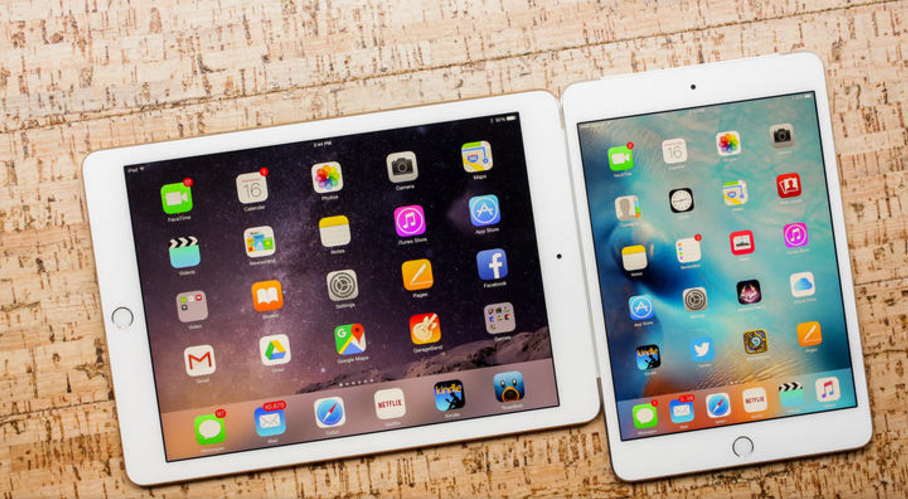
iPad Mini 4 to the right of iPad Air 2: Similar features, but Air 2 still has a slightly better processor.
In a lot of ways, the Mini 4 is like a shrunken iPad Air 2. But it'll cost you close to the territory of one: $399, £319, AU$569 for the 16GB Wi-Fi model, $499, £399, AU$699 for the 64GB version, and $599, £479, AU$829, for 128GB.
To add LTE support -- for using cellular data when there's no Wi-Fi to be found -- add $130 (or £100, AU$160) at each price point, and adjust your cellphone billing plan accordingly. My review version is the 64GB $629 model with Verizon LTE service.
It's also worth pointing out that -- at each storage capacity -- you're saving $100 over that larger Air 2, Apple's 2014 9.7-inch model which remains in the lineup. But it begs the question: If you're spending this much on a tablet, why not get the larger, faster iPad Air 2? (With that model already seeing someimpressive holiday discounts, the question is even more relevant.)
The reverse is also true. Apple's 2013 iPad Mini 2 remains on the market, with a reduced list price of $269 (16GB) and $319 (32GB) -- £219, AU$369 or £259, AU$429, respectively -- and already seenon sale for as little as $199. Yes, it's not as zippy as the Mini 4, and it lacks the newer model's Touch ID fingerprint reader.
Reading on iPad Mini is still perfect.
But for anyone looking to handle basic tasks such as web browsing, email, Facebook and casual gaming, it gets the job done, and with the same eye-pleasing screen resolution, to boot.
The best part of the Mini was always how portable it was, without much sacrifice. That's still true here. iOS 9 feels like a perfect fit, too, and that might be the best reason to look into this iPad. If you liked the design before and don't already have a huge phone, this is a versatile little tablet.
But there's little reason to trade up from an iPad Mini 2 or Mini 3, and I don't think it's worth spending up to the top-tier Mini 4; I'd switch over to the Air 2 at those prices.

A 'tweener tablet

So, let's assume you have a 5-inch or larger phone. The extra space of a 7.9-inch tablet is nothing to sneeze at; it adds up to significantly more screen real estate than you'd expect, and its 4:3 aspect ratio fits word processing and productivity apps better than 16:9.
But the days of clear divisions between gadget screens are over. It's a gentle curve from tiny all the way up to super-big, and you pick the size that works best for you.
The Mini still feels like a superior e-reading device: it's Kindle-like and easy to tuck away in a small bag. I've taken notes on mine, too, in landscape mode. But you can do a lot of movie-watching and game-playing on larger-screened phones now, too.
The rear camera has slow-mo now.
With their 5.5-inch screens, the iPhone 6 Plus and 6S Plus are not the same type of device as the Mini, but they handle some of the same needs.
Compared to previous recent iPad Mini models, the screen is enhanced. It has the same 2,048x1,536 "Retina" resolution as the iPad Mini 2 and 3, and adds the same laminated display and antireflective coating as the iPad Air 2 and iPad Pro. The difference was noticeable, giving the screen a real pop -- colors seem richer and more vivid, too, matching the quality of the Air 2.
The front-facing 1.2-megapixel FaceTime camera is the same one found on all current iPads (except for the addition of burst mode), but the rear iSight camera gets ramped up from 5 to 8 megapixels to match the one on the iPad Air 2.
I wouldn't want to shoot a feature film with it, but it's good for the sort of home movies that are the more common target of tablet video shoots. More importantly, it's a very solid tablet for making FaceTime and Skype video calls.

iPad Air 2

iPad Air 2 review:

The iPad Air 2 delivers unparalleled value for the price

THE GOOD: The iPad Air 2 has a great balance of size and weight. Crisp, bright display. iOS 9 runs perfectly, including split-screen apps.
THE BAD: Priced relatively high for a tablet; single speaker isn't that loud compared to iPad Pro.
THE BOTTOM LINE: Apple's aging mid-range tablet is still the perfect mix of size and performance for nearly everyone.
When Apple introduced the 9.7-inch iPad Pro on March 21, 2016, it seized the mantle of best iPad ever. The spitting image of the celebrated iPad Air 2, this smaller sibling of the original iPad Pro brings to the table a marvelous combination of form factor perfection and cutting-edge specs. Noteworthy features include a blazing fast processor; killer cameras (front and rear); an enhanced, antireflective display; and support for Apple's Pencil and Smart Keyboard. With a near-perfect balance between tablet power and portability, the 9.7-inch iPad Pro is pricy, sure, starting at $599 -- but also the new gold standard in the tablet category.
That noted, the iPad Air 2, the progenitor of the 9.7-inch iPad Pro design, remains arguably the better value. It costs $100 less and has virtually everything a conventional user needs in a tablet. With a keyboard accessory, it's a great portable writing tool -- unlike the iPad Mini 2 and Mini 4, which are both just a tad too small for keyboards. Its screen is well-suited to watching movies. And it handles multitasking a bit better than the Mini 4.
As Scott Stein suggests in his review of the new iPad Pro, this may be why Apple put the "Pro" in the iPad Pro -- these high-performance models are not for everyone. Yes, they're fast -- and especially great for creative professionals who are going to use their Pencil add-ons. But the upgrades come with a hefty price tag, and many folks would be better off spending that amount of money on a nice laptop.

Given this, the iPad Air 2 is still the Goldilocks in Apple's tablet lineup. We awarded it a CNET Editors' Choice in October 2014, and we heartily re-endorse it now, more than two years later.
Editors' note: The original iPad Air 2 review, which follows, has been updated to reflect the existence of the iPad Pro and 9.7-inch iPad Pro.

Perfect size for reading, writing and viewing

The real reason I recommend the Air 2 over all other iPads is it strikes the perfect balance between a reading/playing/viewing tablet and something a bit more productive. It can be carried pretty easily in one hand and feels like reading a softcover book. Magazines and feature articles look good on its screen. Movies -- even letterboxed ones -- look sharp. But it's big enough to do some work on. Apps run side-by-side in splitscreen (Split View) mode work well, and with a keyboard attached it's a solid portable writing machine. My favorite case right now is Belkin's QODE Ultimate Pro -- it offers protection, a great backlit keyboard and two different tilt angles. With one of these on, the iPad Air 2 is nearly a tiny laptop without a trackpad, and a great emergency device to always have on me.
Even after weeks with the larger iPad Pro, the Air 2 seems fine to me. It even seems cozier and a lot more portable.
Split View apps offer split-screen, and it works really well.

iOS 9 runs perfectly, and adds new tricks

iOS 9 adds a few great new tricks to what the Air 2 can do; Split View is the best of them. Apps can be placed side-by-side for real multitasking, in one of several set orientations. Not all apps can use Split View (only ones that have been updated to allow for it), which can be frustrating. But more are being added all the time, and those that are optimized for split-screen are great. For email, Twitter, or even pulling up a calculator on the fly, it makes for a lot more efficiency